Overview
All subscription management is handled through the Paddle billing portal — a secure, hosted page where you can view your plan, update billing details, and control your subscription without contacting support.
See your plan status, next payment date, and full payment history
Update your card or payment method at any time through Paddle
Cancel anytime — and reverse the cancellation before it takes effect
Opening the Portal
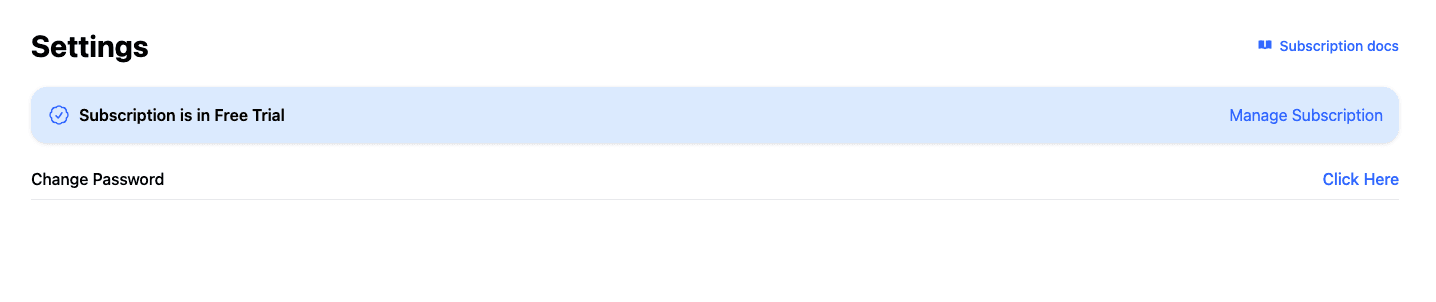
The subscription portal is accessed directly from your account settings — no separate login required.
- 1Go to Dashboard → Settings
- 2Find the subscription status card at the top of the page
- 3Click "Manage Subscription" — a secure Paddle portal will open in a new tab
Secure by design. The portal is hosted and operated by Paddle — your payment details are never stored on our servers.
Subscription Information
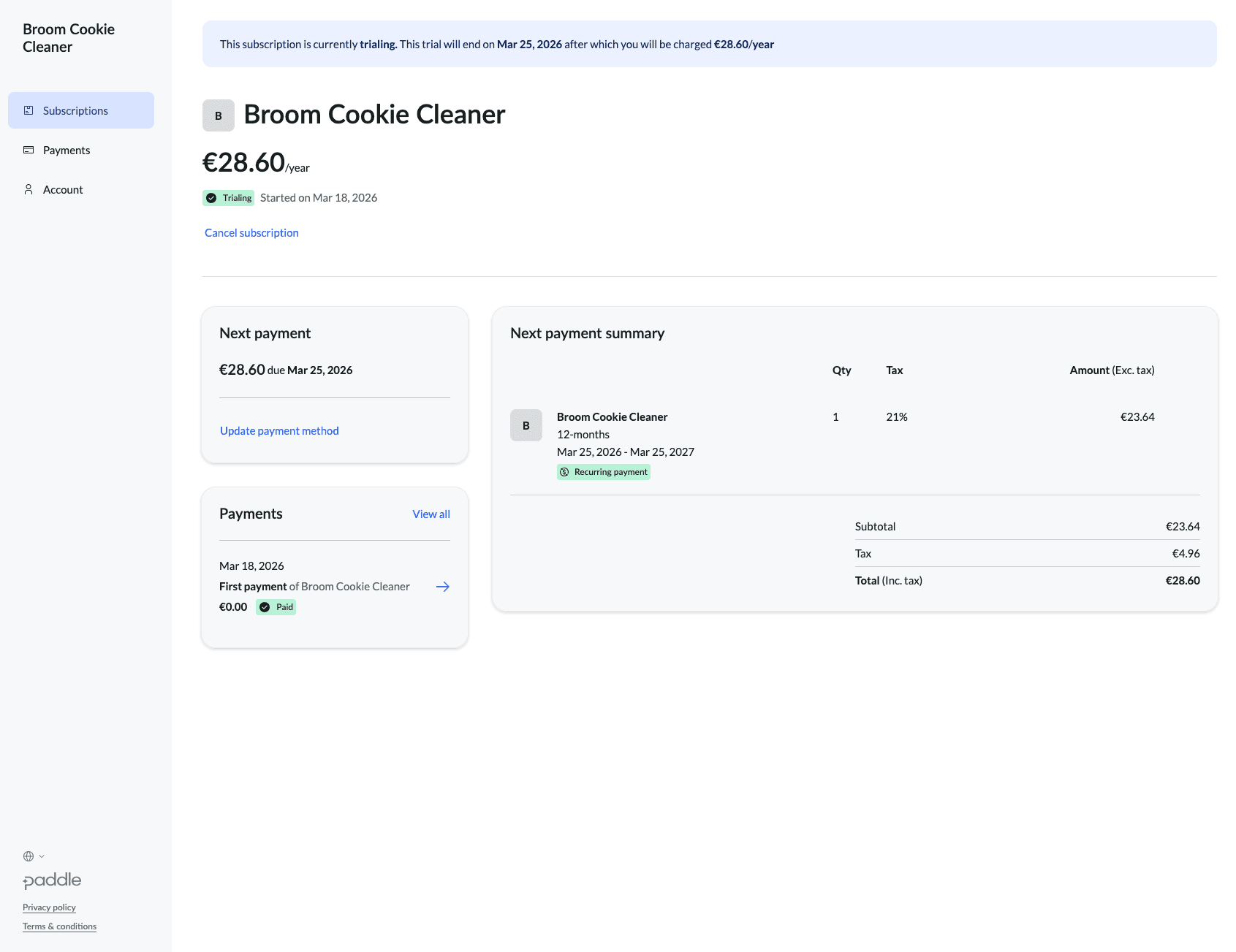
Once inside the portal, the Subscriptions tab (selected by default) shows a complete overview of your current plan.
What you'll see
- →Plan name — Broom Cookie Cleaner
- →Price — your billing amount per month
- →Status badge — Trialing, Active, Canceled, etc.
- →Start date — when your subscription began
- →Next payment — upcoming charge date and amount
- →Payment summary — quantity, tax rate, and totals
Your trial end date and the amount you'll be charged afterward are shown in the notice bar at the top of the portal.
The next billing date and charge amount are shown under the "Next payment" card on the left.
During a free trial, the "Next payment" card shows your first real charge and when it will occur. No payment is taken until the trial ends.
Cancel Subscription
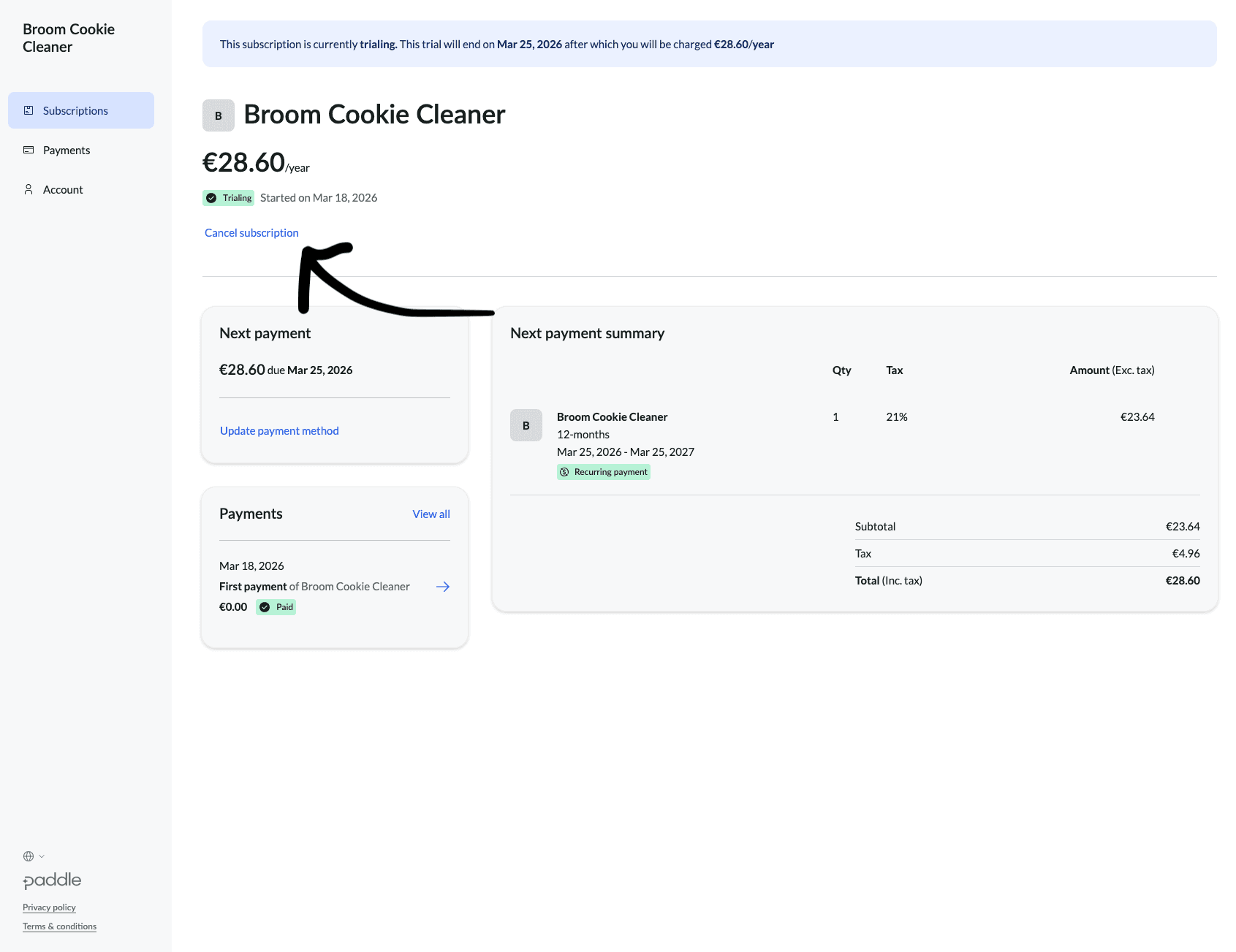
You can cancel at any time. Cancellation takes effect at the end of your current billing period — you keep full access until then.
- 1Open the Paddle portal via Settings → Manage Subscription
- 2On the Subscriptions tab, scroll below the plan details
- 3Click the "Cancel subscription" link
- 4Confirm when prompted — a banner will appear showing the exact date and time the cancellation takes effect
After cancellation is confirmed:
A yellow notice bar appears at the top of the portal reading "This subscription is scheduled to be canceled on [date] at [time]." Your access remains active until that moment.
Changed your mind? You can reverse the cancellation at any time before it takes effect. See the Undo Cancellation section below.
Undo Cancellation
If you cancelled by mistake — or simply changed your mind — you can reverse the cancellation as long as the subscription hasn't expired yet.
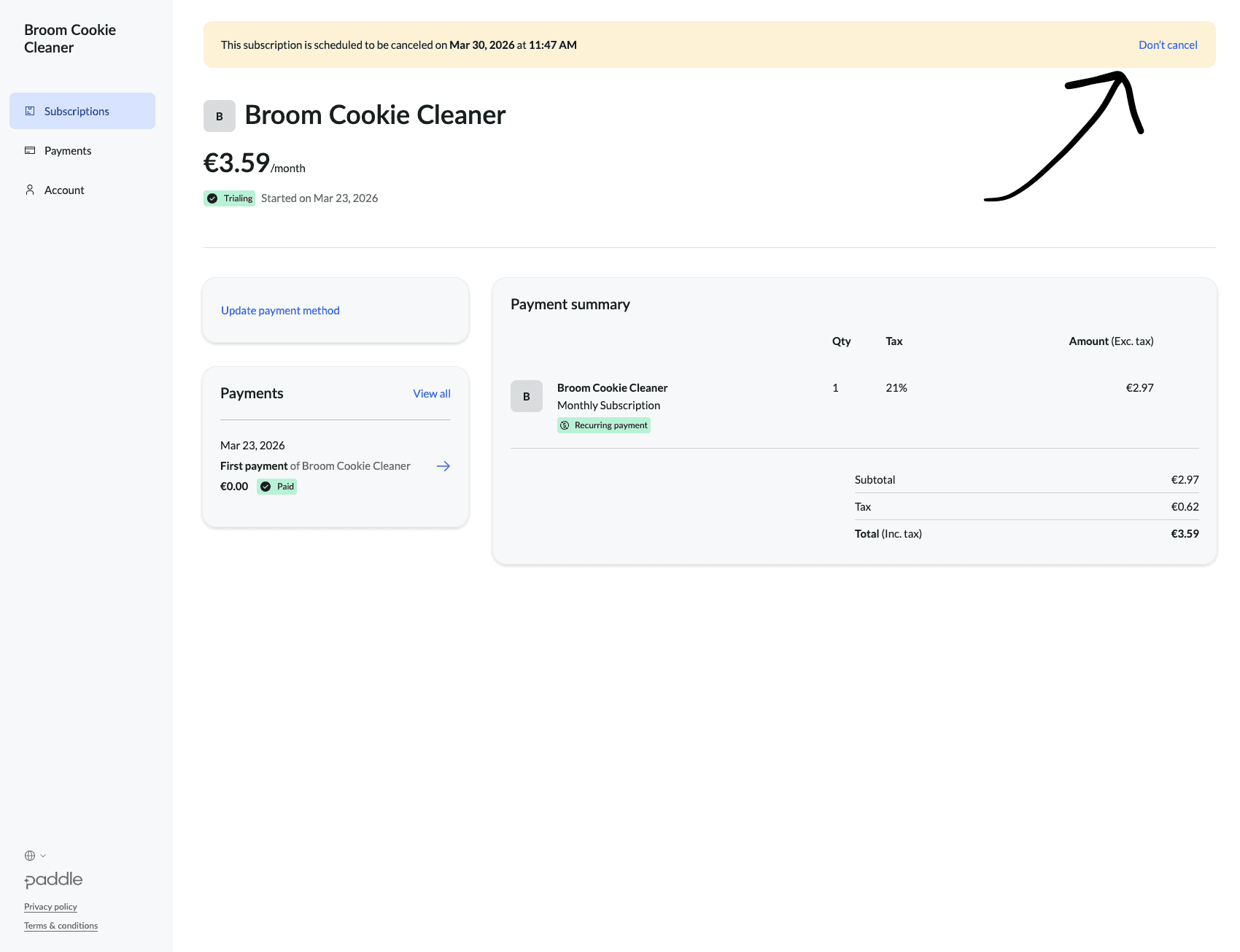
- 1Open the portal via Settings → Manage Subscription
- 2The yellow banner at the top shows the scheduled cancellation date
- 3Click "Don't cancel" on the right side of the banner
- 4The banner disappears and your subscription resumes normally — no interruption
No action needed on your dashboard. Reversing the cancellation in the Paddle portal is all that's required — your subscription continues as if nothing happened.
Update Payment Method
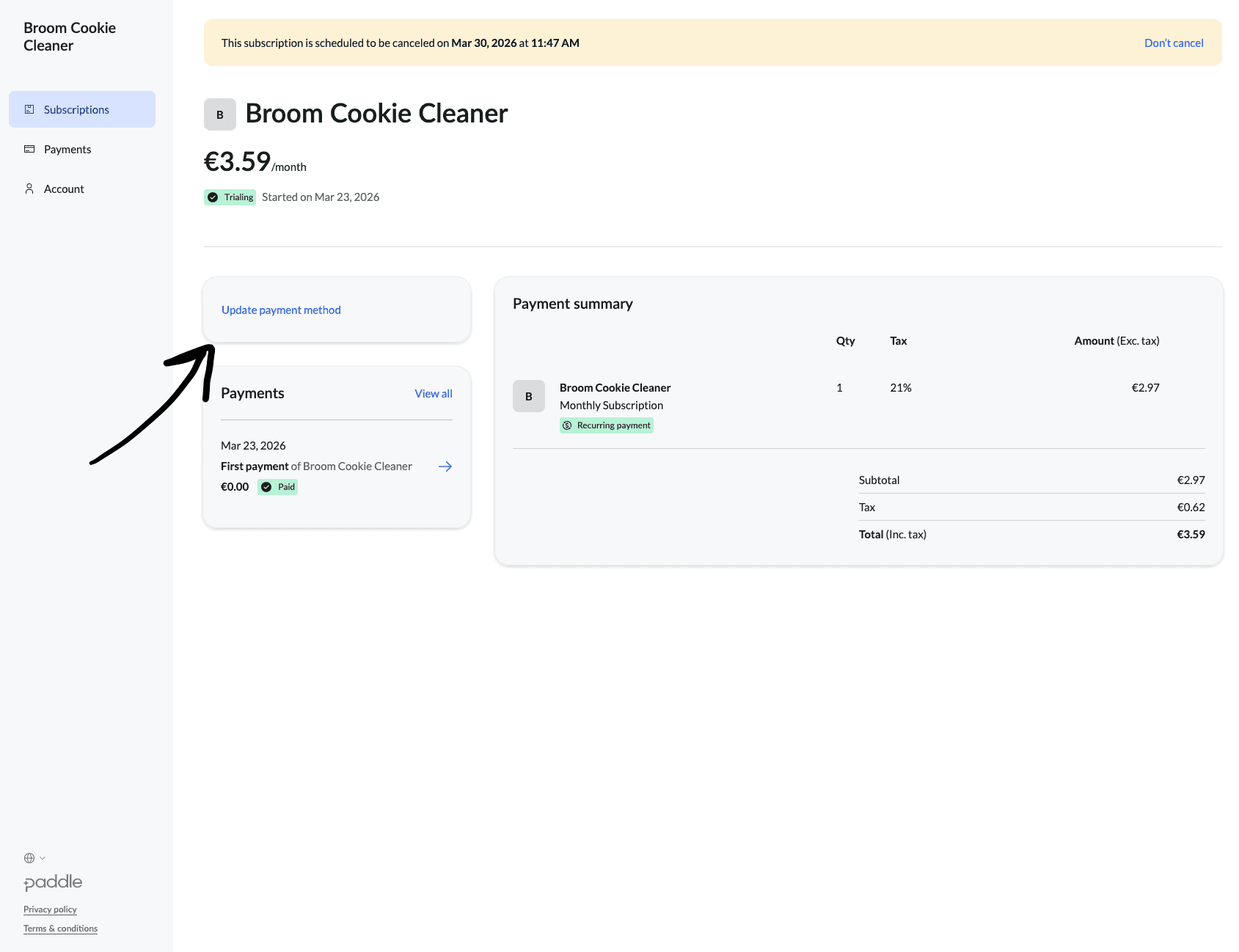
You can update your card or payment method at any time — changes take effect on the next billing cycle.
- 1Open the portal via Settings → Manage Subscription
- 2On the Subscriptions tab, find the "Update payment method" link in the "Next payment" card on the left
- 3Enter your new card details in the secure Paddle form
- 4Save — your new payment method will be used for all future charges
Accepted payment methods
- • Visa, Mastercard, Amex
- • PayPal
- • Apple Pay / Google Pay (where available)
Current method visible in portal
Your current card is shown in the payment detail view as a masked number (e.g. **** 4242) with the card brand logo.
Payment Information
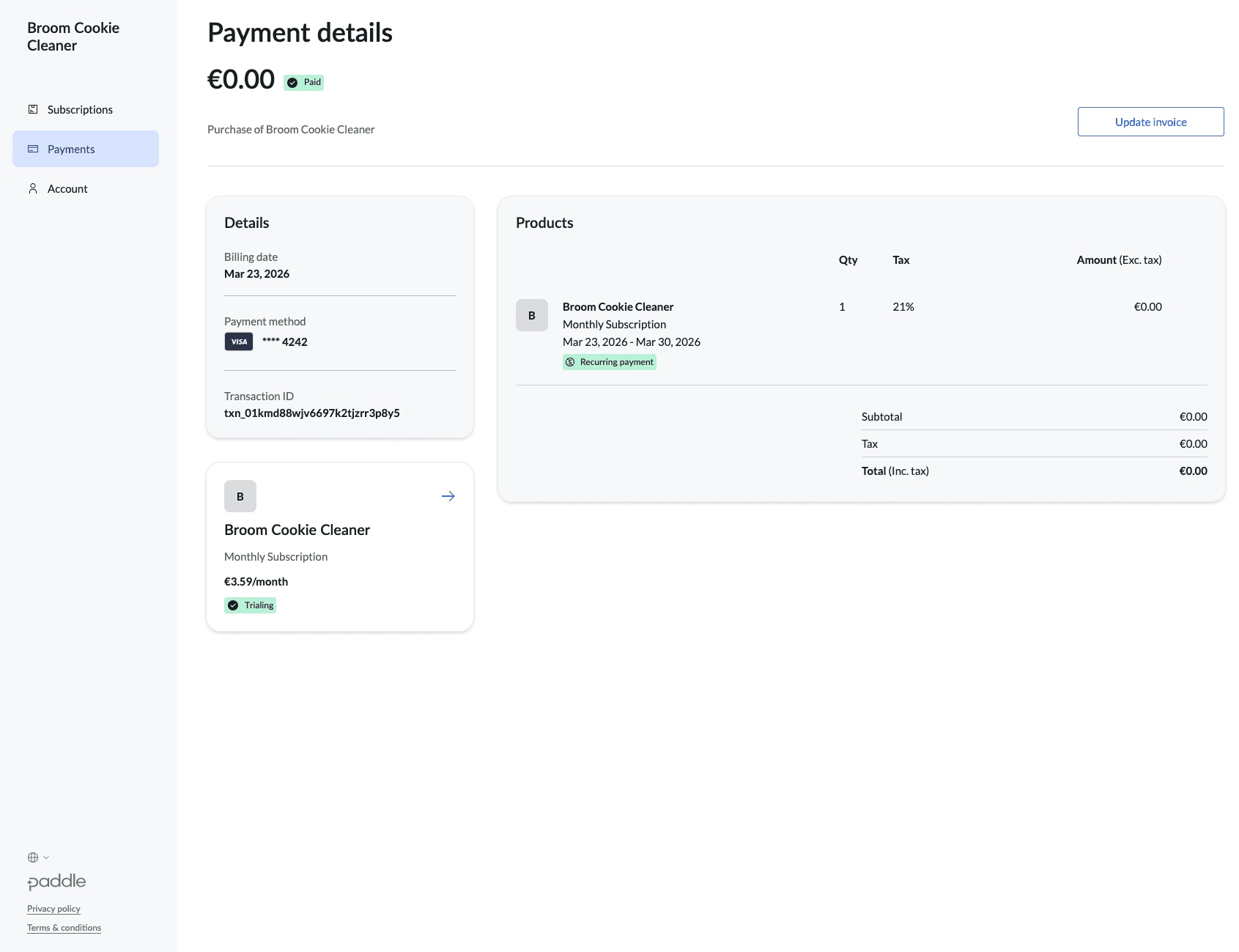
Every payment — including the €0.00 first payment during a free trial — is logged and accessible. The Payments tab in the portal shows your full history.
Viewing your payment history
- 1In the portal, click Payments in the left sidebar
- 2You'll see a list of all transactions with date, description, amount, and status
- 3Click the → arrow next to any payment to open its detail view
What the detail view shows
- ✓Billing date — exact date the charge was processed
- ✓Payment method — card brand and last 4 digits
- ✓Transaction ID — unique reference (e.g.
txn_01kmd…)
- ✓Products — line items with quantity and tax rate
- ✓Subtotal, tax & total — full invoice breakdown
- ✓Update invoice — add billing details (business name, VAT, address)
Need a VAT invoice? Open any payment detail and click "Update invoice" to add your company name, VAT number, and billing address. The invoice is updated immediately.
Ready to manage your subscription?
Head to your settings and click "Manage Subscription" to open the billing portal.